

As a website grows, it’s only natural that some elements will need maintenance.
Among these, there’s one that can have more impact than it may seem: broken links.
These should find a place in your priority list for two reasons:
- They are considered some of the worst UX mistakes that cause visitors to leave your site
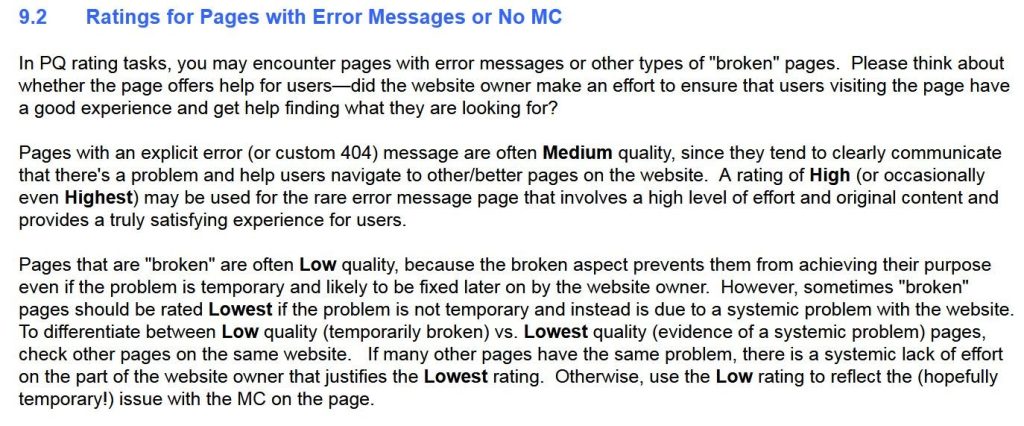
- Search engines don’t love them either because their users don’t like them: Google’s Guidelines for Search Quality Raters include broken pages – with or without a custom 404 error – to be marked as unhelpful.
In this post, we’ll cover both the basics and how to fix broken links on the 5 majorly used CMSs.
Feel free to jump to the most relevant section for you:
Why are broken links bad for SEO?
What are Outbound or Outgoing Links?
How to fix broken links on Weebly
How to fix broken links on WordPress
How to fix broken links on Wix
How to fix broken links on Shopify
How to fix broken links on Squarespace
Examples of Great 404 Error Pages
What are Broken Links?
In simple words, they are dead links, or links to web pages that no longer exist.
Some of these may be caused by site software, which may, as an example, change the structure of blog tags and categories with an update, resulting in the old tag and category links no longer working. But these broken links are the easiest to deal with: just signal them to your webmaster and they will take care of the necessary redirects.
Other types of broken links, however, are harder to fix: things like pages that have been removed because they were obsolete, for example, should have a 301 redirect applied to them to avoid frustrating 404 error pages that can lead to reputation and SEO management issues.

Why are broken links bad for SEO and UX?
When visitors follow links, they are expecting content to be available once they load that page.
If it isn’t, that’s not a pleasant surprise and search engines like Google don’t like it when you give a visitor a less than optimal experience.
Let’s see some of those issues in detail:
- Crawling problems: When Google tries to scan your site, it wastes time on dead links instead of finding your real pages.
- Lost link power: A broken internal link stops the “SEO value” that should move through your site from one page to another.
- Slower pages: Redirects and missing files can slow down how fast your pages load.
- Less trust: People are less likely to stay on or share a site with many broken links.
Keeping your links healthy helps visitors trust you and helps search engines understand your site better.
So, now that you know the basics about broken links, how do you check if your site has them?
Free Website Reports
You can generate a Free Website Report that will identify the broken links for you, among other errors. marketgoo offers one here. You can also search for other free tools that allow you to find the broken links on your site.
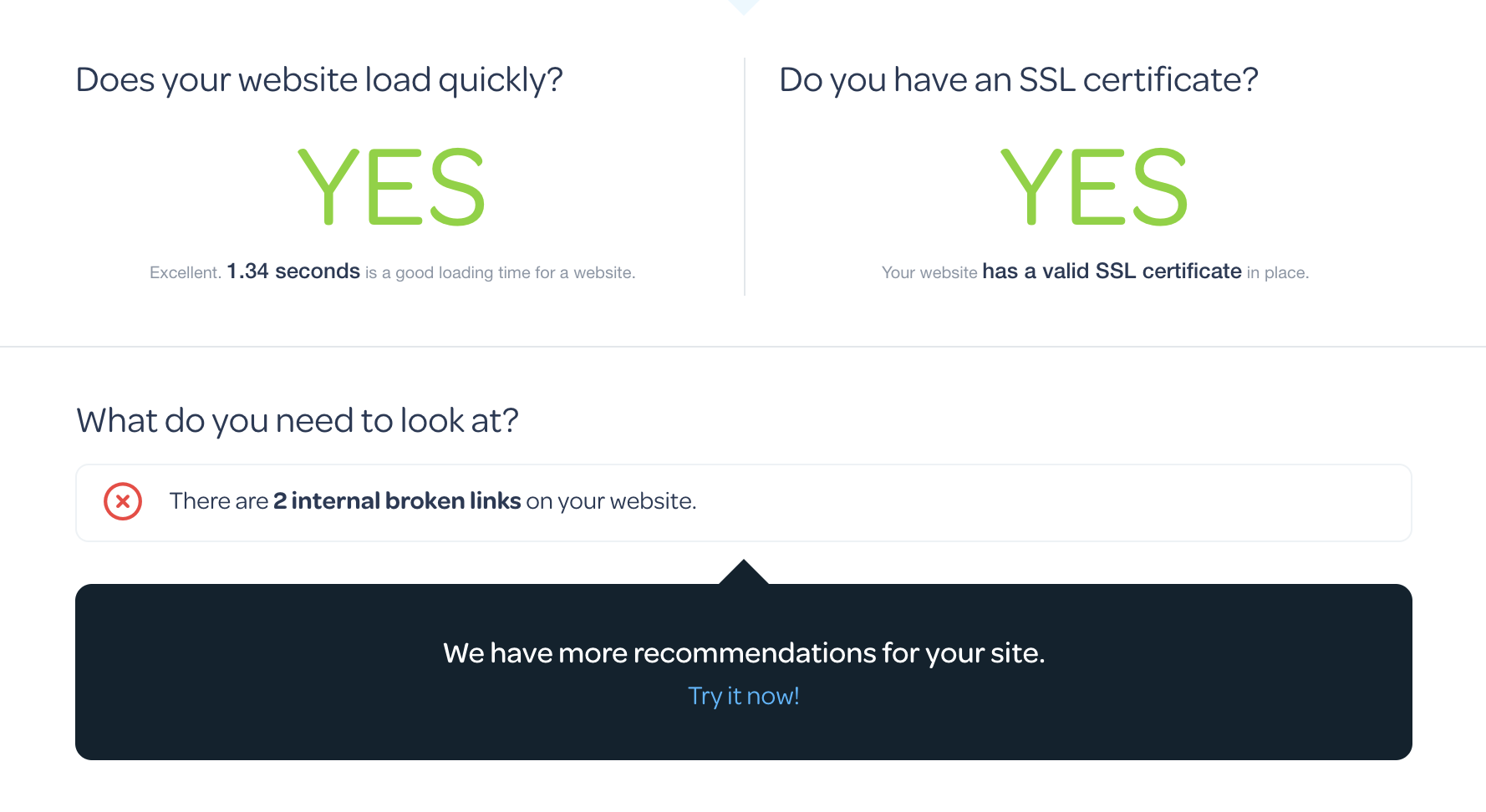
We also have broken link detection along with instructions on how to fix them on our web app:
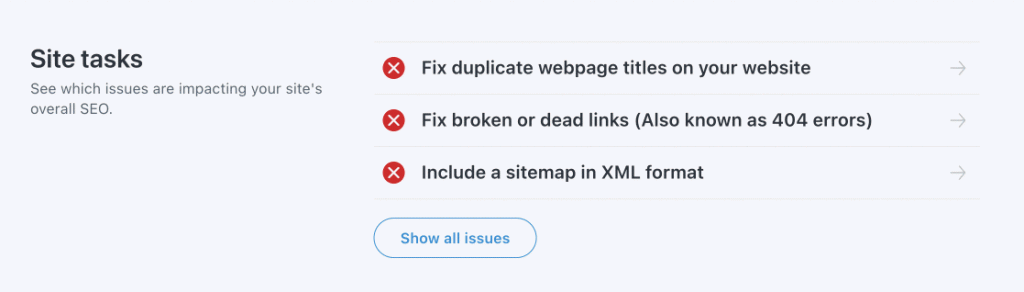
You can also search for other free tools that help you find the broken links on your site.
We list some below:
- Dr. Link Check
- Screaming Frog SEO Spider
- Broken Link Checker (Chrome extension)
Using these tools can help you maintain a healthy website by identifying and fixing broken links, improving user experience, and boosting your site’s SEO performance.
Paid Tools
You have paid tools (such as marketgoo) that will identify many SEO issues – broken links among them – and give you detailed instructions on how to fix them with one-on-one support included.
As we did with free tools, here are some other paid tools you may want to keep in your handy-tools box:
- Sitechecker
- SEOptimer (previously, Monitor Backlinks)
- Ahrefs
- Semrush’s Site Audit
All these apps will help you specifically with backlinks.
What are Outbound Links?
Outbound links are links on your website that point to other websites.
For example, if your blog article links to a helpful guide on another site, that is an outbound link.
These links are important because:
- They help your readers find extra useful information.
- They show search engines that your site is connected to trustworthy sources.
Eliminating broken links that are pointing to external pages isn’t always easy, as you usually have no control over someone else’s content, but you can reach out to the site owner so they can fix it (it’s called a link removal request), or choose to link to other similar content with working pages.
On a little technical note, when someone links back to your site, in the HTML source of the page it will appear similar to this string of code:
<a hrefs=”https://example.com” target=”_blank”>Your Site Name</a>When it’s you who links out to others’ pages, the URL and site name will be theirs.
Remember: it’s important to check outbound links regularly. Broken outbound links can make your site look outdated or poorly maintained.
To do that you can:
- Use tools to automatically check if links are broken.
- Replace broken links with current, high-quality sources.
- Consider nofollow or sponsored attributes if linking to paid or untrusted sites.
- If a linked page disappears, try finding a similar page to replace it or remove the link.
Keep reading on how to fix your internal broken links on the most popular CMSs.
(See more about different types of links in SEO.)
How to fix Broken Links on Weebly
- Once you have identified your broken links, go to your Weebly Website Dashboard.
- Click on “Edit Website”
- Go to the Text/Image/Button/Navigation editor
- Highlight the text for which you want to change the link and then click the little “chain icon” that appears in the top bar. See screens here
- If you’re redirecting a deleted page, send users to any related page (so they still get content related to what they were originally looking for). If there is no closely related page, then send users to your homepage
- When you’re done, Apply and Publish
- If you have a paid plan on Weebly, you can skip the manual update of every broken link and use Settings > SEO > 301 Redirects instead.
Hot to Fix Broken Links on WordPress
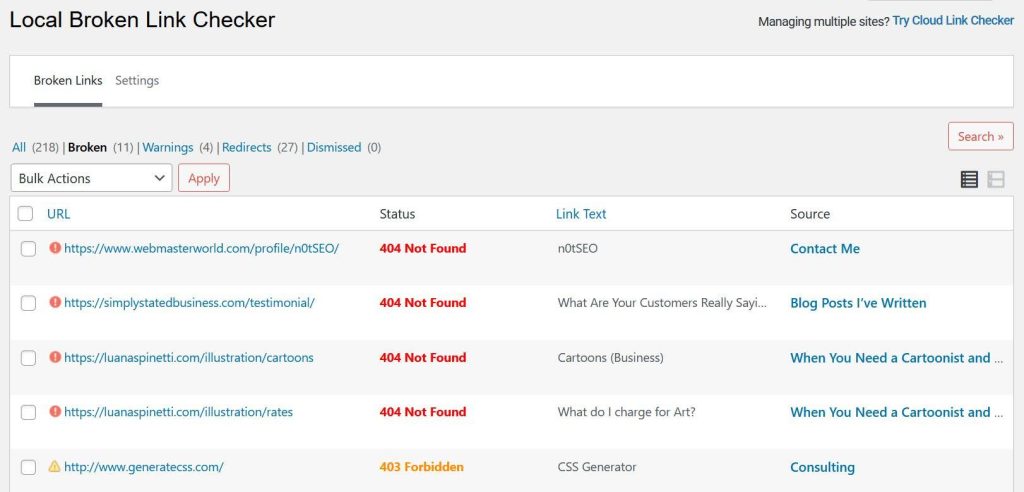
- Download and install the Broken Link Checker plugin
- Activate the plugin
- Go to Tools > Broken Links > Local [old] on the left menu in your WordPress Editor
- If you have a Multisite WordPress installation, you can opt to use Tools > Broken Links > Cloud [new] for the cloud-based version of the plugin (not available for single websites)
- After running this plugin (it could take hours), you’ll find your broken links
- If the broken link is a blog post, it’s better to update the link instead of “unlinking” it
- As a safety measure, deactivate the plugin after use.
- For 301 redirects, install the 301 Redirects – Redirect Manager plugin
- Activate the plugin and then visit Settings > 301 Redirects to add your URLs
How to Fix Broken Links on Wix
Did you know that Wix has its own broken links checker app?
You can download it here to make things quick and easy.
Or… you can do it manually! After identifying your broken links:
- Access your Wix Dashboard
- Go to your SEO Dashboard
- Scroll down to Tools and settings and click URL Redirect Manager
- Click “Add Redirect”
- Enter the text that should appear after your domain name (e.g. /about) under Old URL
- Enter your new page text under New URL – this is the page that the old one should redirect to.
- Click Save & Close (or Save & Add Another)
To edit internal links, you can also use Wix Editor, choose the link or button and then click Edit Link.
To manually add a 301 redirect, you can use Wix’s guide here.
How to Fix Broken Links on Shopify
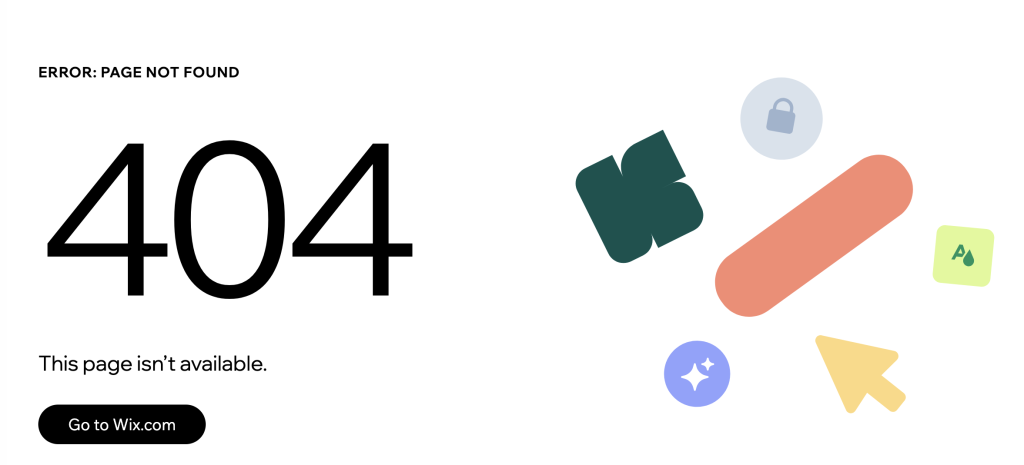
Use this when you have found a specific 404 error and need to point it to a new page:
- From your Shopify Admin, go to Content > Menus
- Click the View URL Redirects button in the top right corner.
- Click Create URL redirect
- Enter URLs:
- Redirect from: Paste the “broken” URL (e.g., /products/old-item)
- Redirect to: Paste the new destination URL (e.g., /products/new-item). To send them to the homepage, just enter /
- Click Save redirect. The link is now fixed instantly.
If you are on a Shopify Plus plan, you can use Shopify Flow to automatically create redirects whenever you delete a product, preventing broken links before they ever exist.
Follow the guide here.
How to Fix Broken Links on Squarespace
Squarespace recommends manually updating all outdated links, but you can also set up URL redirects (called URL Mappings) to point visitors to new pages.
Depending on whether the broken link is a site content link or an external link, you can do different things. A content link connects to other pages on your Squarespace site.
Here’s the how-to:
- Log into your site and go to the area containing the link
- Click the URL tab
- Write the name of the page you or its URL (relative URLs, in the “/” form, not with the “https://www…” part). For collection pages, use the complete URL
- In a private or incognito window, visit the page on your site with the link. Click the link to confirm it works correctly.
To set up URL Mappings, instead, follow these steps:
- Open your Settings > Developer Tools panel
- Click URL Mappings
- Make sure you have the following 3 things:
- The old URL for the page that no longer exists
- The new URL for the page you want to redirect to
- The redirect type (301 or 302). In your case, it will likely be a 301 (permanent redirect)
The URL mapping looks like this:
/old-url -> /new-url 301- Keep the same capitalization with all your URLs. If your URLs are all lowercase, then your redirects should also be all lowercase
- URL redirects can’t have “?” or “#” symbols
When you’re done with the URL edits, click Save.
Redirect multiple blog posts, events, or products on Squarespace
Each item on these pages has a unique URL that includes the page’s slug followed by the item’s slug (for example, /blog/example-post).
If you change a page’s URL slug in Page Settings, every item in the page will have a new URL.
Instead of adding separate redirect lines for every post, you can save time by adding one line that redirects all item URLs.
For example, your old Blog Page’s URL was /blog. You changed it to /posts. You want to ensure visitors can still view “Example Post” through http://www.yourdomain.com/blog/example-post. To do so, you’ll enter [name] in the redirect:
That redirect looks like this:
/blog/[name] -> /posts/[name] 301After adding your redirects, click Save.
301 Examples
Changing a page’s URL
For this example, say you want to change the page www.mysite.com/contact to www.mysite.com/contact-us
- In Page Settings, change /contact to /contact-us
- In URL Mappings, create the redirect from /contact to /contact-us
The redirect should look like this:
/contact -> /contact-usRedirecting from a deleted page to the homepage
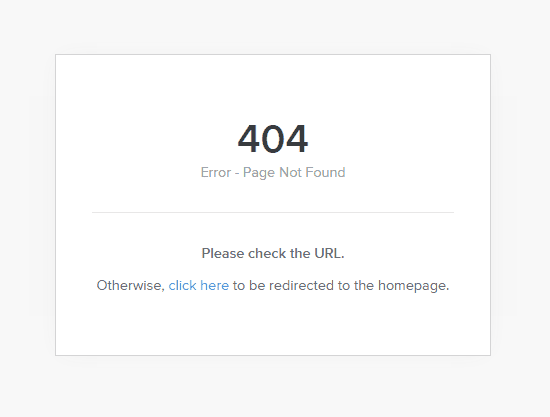
If you deleted the Contact page (www.mysite.com/contact), to prevent visitors from seeing a 404 error page, you can direct them to your homepage instead.
Since the homepage doesn’t have a specific page name, use a blank slug to direct to the homepage.
The redirect looks like this:
/history -> / 301To prevent a deleted page from showing in Google search results, Squarespace recommends indexing (or re-indexing) your site using Google Search Console.
Redirecting from a deleted page to the homepage
If you deleted the Contact page (www.mysite.com/contact), to prevent visitors from seeing a 404 error page, you can direct them to your homepage instead. Since the homepage doesn’t have a specific page name, use a blank slug to direct to the homepage.
The redirect looks like this:
/history -> / 301
What are bad links?
If you find you don’t have broken links, but bad, low quality (spammy) links directing to your site.
Bad links are links that can hurt your website’s SEO or annoy visitors. They include:
- Low-quality links: Links from spammy or untrustworthy websites.
- Paid or unnatural links: Links you bought or added just to try to boost SEO. Search engines may penalize these.
And yes, after all, broken links are another type of bad link, in that it damages your site reputation.
Read our article on Link SEO here for more link-fixing ideas.
Examples of Good 404 Error Pages
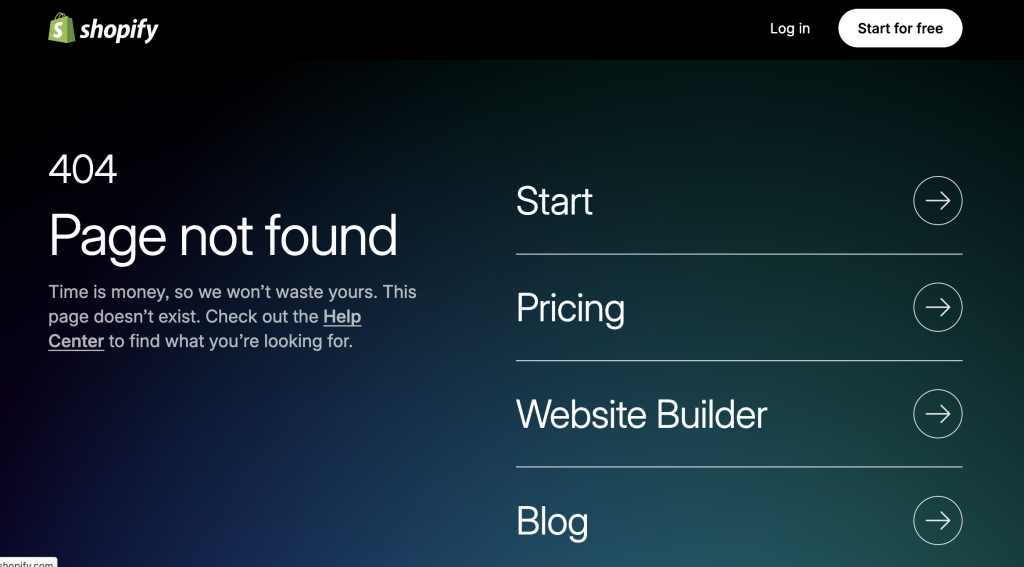
And don’t forget to have a good 404 error page ready just in case, because you want your visitor to stay, not leave in disappointment!
Check our Pinterest board for some inspiration.
To identify your broken links and get more specific recommendations on how to improve your site’s ranking on Google, sign up to marketgoo.